Tattoo booking software for UK artists and studios
Tattoo studio software · UK
Give clients one link to your work, services and tattoo enquiry form. Talk through the idea, send a quote and book the session you agree in Studio.
Keep private references, your chats, booking terms and payment records beside the booking. Your artist calendar is there when you need to find a time.
Book phone clients and walk-ins straight from your calendar. Choose the artist and agreed time, check there's suitable space and decide how they'll pay. Use online payment requests when enabled, or keep your usual payment arrangements.
No card or business verification needed to get started. Choose your monthly plan when you're ready.
Every feature is included in your monthly subscription. No InkWell payment commission; Stripe processing fees are separate.
Keep enquiries out of scattered inboxes
Tattoo enquiries can be scattered across Instagram DMs, email threads and spreadsheets. Finding the brief, latest quote and agreed date shouldn't take time away from your next session.
Tattoo work needs room for consultations, quotes and a conversation before the artist and time are agreed.
Built for how tattoo artists actually work
Talk through the brief, agree your price and book the time you've settled on. Saving a quote doesn't take payment or reserve a time.
A page for your studio
Show your work, services and styles on your public page. Clients send an enquiry with their idea, budget and preferred dates.
Quotes and payment requests
Keep the price and required deposit with the booking, including phone clients and walk-ins. Ask for a deposit, full payment or balance when online payments are enabled and Stripe is ready.
Working hours and time off
Set weekly hours, slot durations and buffers. Block time off and check existing sessions before booking an agreed appointment.
Room for your team
Every plan includes team roles and non-artist staff. Choose Solo for one active artist, Small Studio for up to five or Studio for up to ten, at one location.
Client conversations after booking
Keep the chat going after you book. Message enquiry, phone and walk-in clients from their booking, with the original conversation still there. Share saved quotes and confirmed receipts; clients reply through a private link without an account.
Use private client conversations →Booking terms and tattoo consent
Share booking terms and the quote for agreement. Before tattooing, use optional digital waivers to collect consent and health answers, then record the staff review beside the session.
See the work inside InkWell
These are real product screens from a fictional demonstration studio. The brief and quote stay visible while your team decides what happens next.
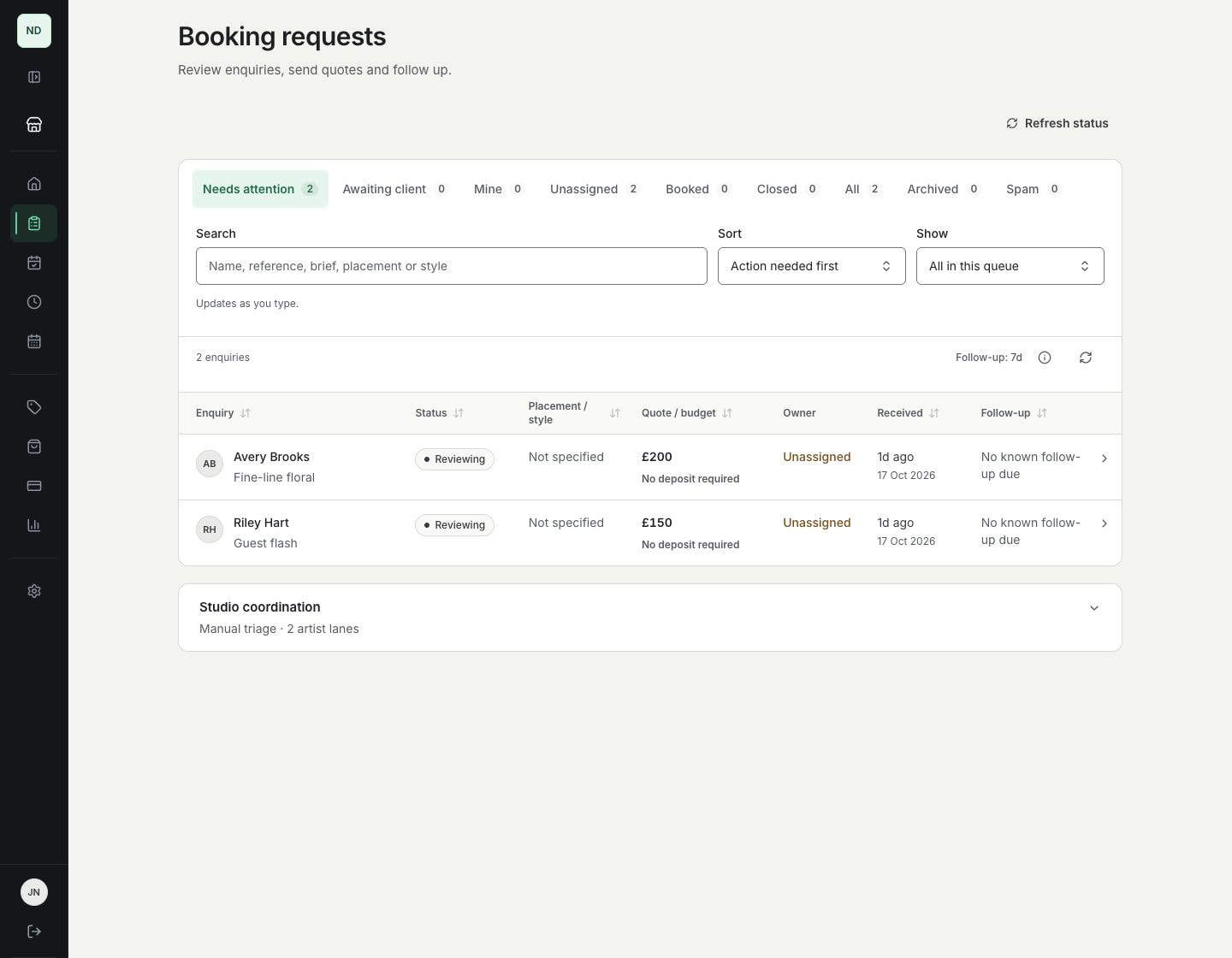
Get to know the idea before you book
See the brief, placement, quote and where each enquiry has got to. Search the queue or focus on the work that needs attention.
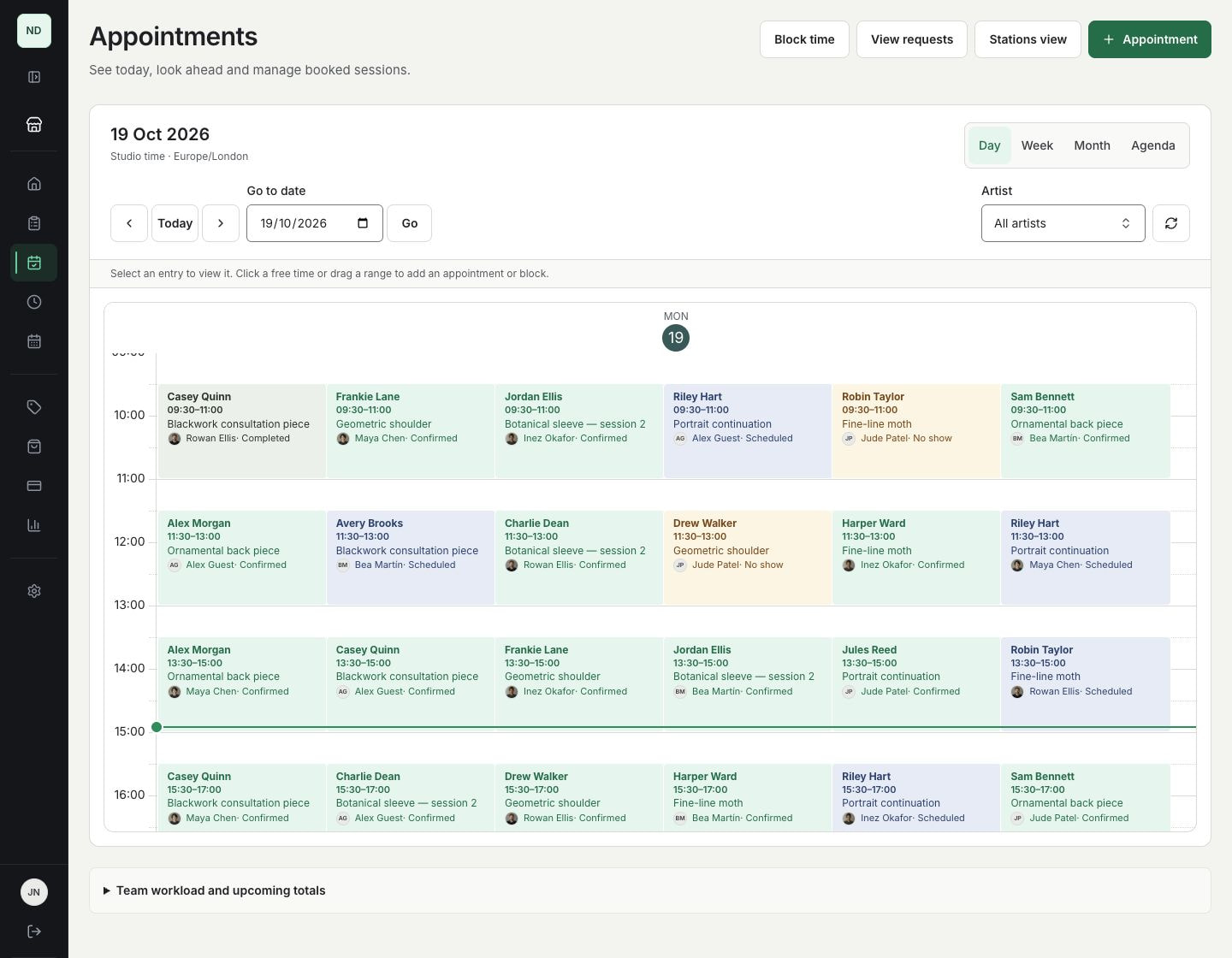
Keep agreed sessions in the artist calendar
Check the studio diary alongside working hours and blocked time. A received enquiry or saved quote does not create an appointment.
Illustrative booking example
From a botanical brief to an agreed session
Maya wants a fine-line botanical piece on the outer forearm, roughly 12 cm tall. Her reference explains the spacing she likes, and she shares a budget range and preferred dates.
1.
Review the idea
Check the subject, references, placement and rough size. Choose who'll handle the enquiry and ask about anything that's missing.
2.
Discuss the quote
Keep questions and replies in the private conversation. Save the agreed price and any required deposit separately from the client's starting budget.
3.
Agree the appointment
Check the artist calendar, agree the time and duration with the client, then book the session. Use payment requests separately when collection is enabled and Stripe is ready.
4.
Prepare for the session
Follow your studio's booking terms and consent process. If enabled, share the private digital waiver and health questionnaire, then review the submitted record before tattooing.
An example booking with a fictional client. A quote, a payment and a booked appointment each have their own status.
Know what each enquiry needs next
Open an enquiry and find the brief, past quotes and calendar together, ready for your next reply.
A queue you can prioritise
Find enquiries from your studio page in one queue. Search the brief, sort by priority or value, and check what needs a follow-up.
Quote and payment details
Keep the quoted price and confirmed payments beside the brief. Saving a quote or receiving a payment does not reserve an appointment.
A clearer picture of the tattoo
Clients share their idea, body area and rough size, attach private screenshots or artwork, add reference links and use an optional placement guide. Keep the conversation with the enquiry so the next reply has context.
Your schedule, your rules
Set working hours, session lengths and buffers. Check availability before confirming an agreed appointment.
Questions about this workflow
Can a client book a tattoo without the artist reviewing it?
InkWell's public form sends an enquiry. Your team reviews the work and agrees the artist, price and time before booking the session in Studio. Sending the form does not reserve a slot.
Do clients need an InkWell account?
No. Clients can submit a tattoo enquiry without an account, then read and reply to its private conversation through an emailed link.
Can I use InkWell from my Instagram profile?
Yes. Link to your published studio or artist page so visitors can see your work and send an enquiry. Prepare and preview the page privately before completing the subscription, verification and publishing steps.
Are digital waivers and payments included?
Yes. Every paid plan includes digital waivers and payments. Use your studio's reviewed consent wording. To take online payments, collection needs to be enabled and Stripe must be ready. InkWell takes no payment commission; Stripe processing fees apply separately.
Online payments
Request deposits, full payments or remaining balances when online payments are enabled for your studio and your Stripe account is ready. If payment requests are switched off, keep your existing payment arrangements.
Build and preview your page before business verification. When you're ready to go live, save your legal seller details and complete Stripe business verification and any InkWell seller review before publishing.
Read the payment collection guide →
Give clients a clearer way to enquire
Create your account without a card and add your work and services. Take a look at your private page as you go, then follow the business verification and publishing steps when you're ready.
Set up InkWell yourself. No call required.