
Scheduling software for tattoo artists
Tattoo studio software · UK
Book phone clients and walk-ins straight from your calendar. Choose the artist and agreed time, check there's suitable space and decide how they'll pay. Use online payment requests when enabled, or keep your usual payment arrangements.
See today's appointments, look through the week or plan further ahead. In a busy week, overlapping sessions are grouped with a count; open the day or booking for a closer look. Working solo? You don't need to add stations.
No card or business verification needed to get started. Choose your monthly plan when you're ready.
Every feature is included in your monthly subscription. No InkWell payment commission; Stripe processing fees are separate.
Check the whole day before offering a time
Before offering a time, you need to check the artist's working hours, existing sessions and time off.
A consultation and a full-day tattoo need different lengths, with time for set-up and clean-down. Keep those details together rather than piecing them together from messages.
Your calendar, your rules
See booked sessions, working hours and time off together. Check the time you have in mind before confirming it with your client.
Phone bookings and walk-ins
Click a free time or drag across the hours you need to start a booking with the time filled in. Email and price are optional. Keep drawing time in a separate block from client sessions.
Add an appointment from the calendar →Weekly booking hours
Set when each artist can take appointments, with weekly booking hours, slot durations and buffers. Plan attendance separately in Studio schedule.
Time for each service
Set a duration for each service, or choose the length of an agreed custom session when you book.
Buffer time
Add time between appointments for set-up, clean-down or a break.
Holidays and time off
Block a day or date range when you're away. InkWell checks that time before saving a booking. Clients' preferred dates do not reserve a session.
Appointment checks
Before saving an agreed session, InkWell checks working hours, time off, time between sessions and existing appointments.
Hold a proposed session
Where calendar holds are available, protect a checked time for 24, 48 or 72 hours while discussing the booking. A hold and a paid deposit still need your separate appointment confirmation.
Built to read when the diary is full
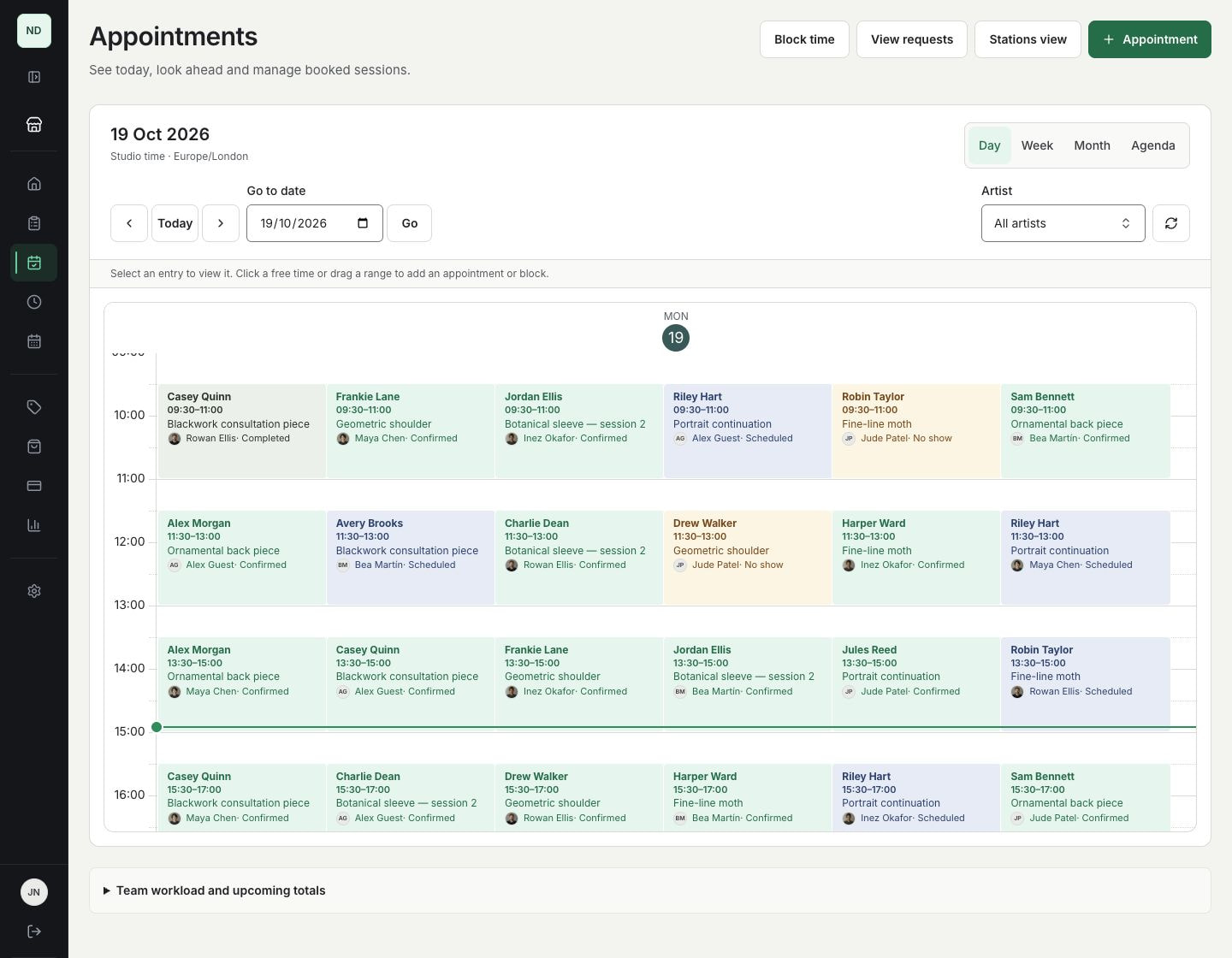
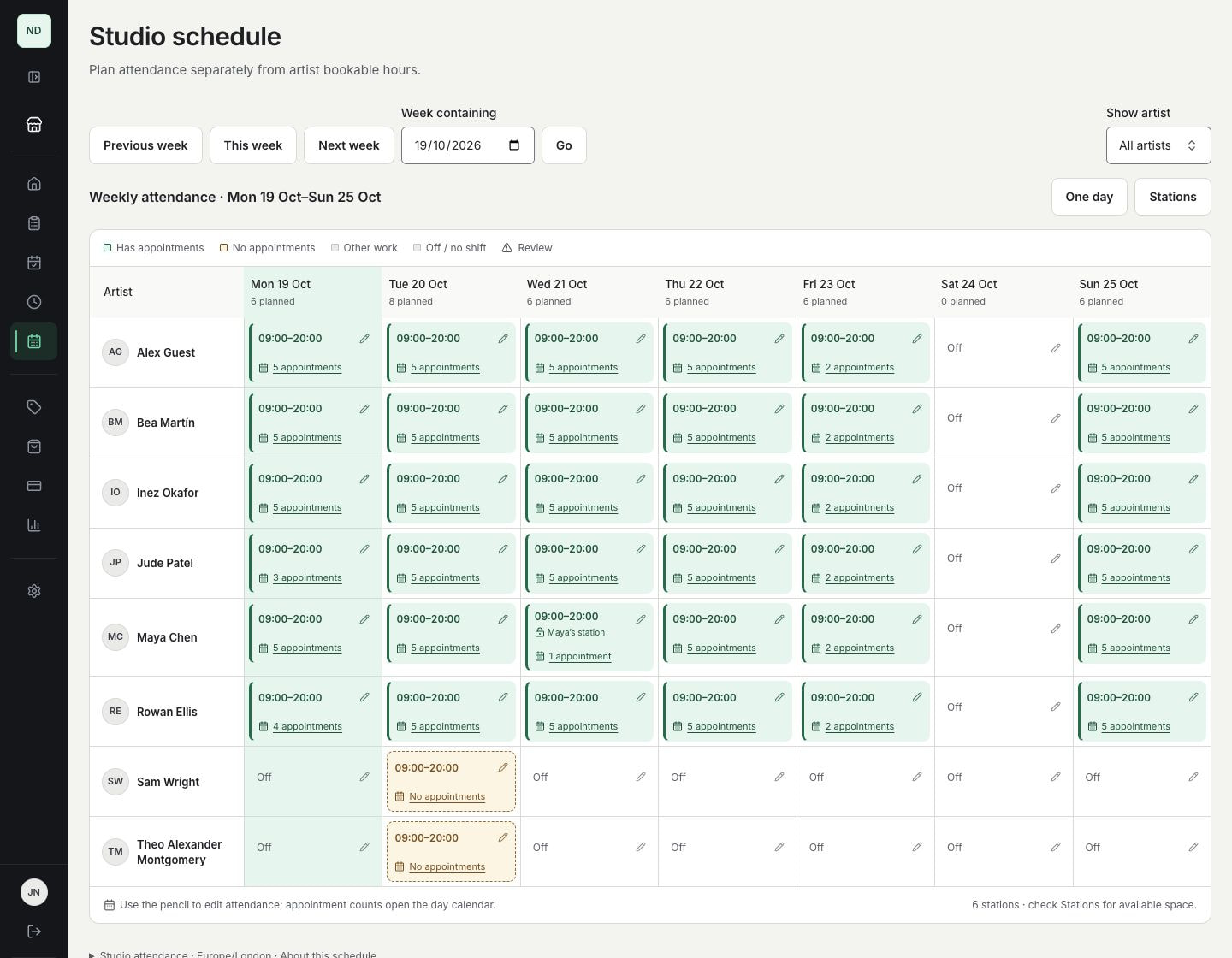
Take a look around a fictional studio with thirty appointments across six artists and an eight-artist rota. These are real InkWell screens. Booking hours, who's due in and the client diary each have their own place.
A full day, with readable booking blocks
Artist names, clients and times stay inside their booking blocks. Open an entry for the brief and session details; calendar navigation does not move appointments.
See who is expected in, across the whole week
See shift hours, days off and artists with no appointments in one rota. Open an appointment count to see that artist's day, or use the pencil to change attendance for a day or a repeating pattern.
Keep control of the time you offer
Find a time that works
Check the calendar before proposing a time. You can offer an alternative to the client's preferred dates or arrange a session when none were supplied.
See a busy week clearly
Use a full day, a week overview or a readable agenda on your phone. Filter by artist and open a booking without losing your calendar position. Google and Apple calendar sync are not included.
The right action for the session
Change the time before a session, review what happened after it, then find payment records and client messages once it's complete, as your role allows. You mark the work complete yourself; the clock doesn't do it for you.
Follow the booking through to aftercare →Protect your downtime
Add breaks and time off to the schedule so staff can see them before offering another session.
Questions about this workflow
Can I record a no-show before the session ends?
Yes. After the start and any agreed grace period, use Record no-show. Review the saved policy and client notification; owners and admins decide retention or a supported refund. Other booking staff leave a payment review task. No extra card charge is automatic.
Can I book three days as one continuous session?
Each appointment has one date, a start time and an end time. For several visits, book separate dated sessions. The booking form supports one active appointment; Book again starts a fresh draft for another visit, rather than a shared multi-session package.
How do booking hours differ from the studio rota?
Booking hours sets when an artist can take appointments, with weekly hours and time off. Studio schedule is the attendance rota. Appointments shows client sessions. None of these alone is a list of guaranteed free slots; booking still checks the artist and suitable station space when tracking is enabled.
Do I need to set up a station as a solo artist?
No. Studio space tracking is optional. Use artist calendars, working hours and time off without adding stations. Turning space tracking off does not remove artist availability or booking-conflict checks.
Can I drag appointments to a different time?
Drag across a free time to start a new appointment or block. To move an existing booking, use Change time or station and check the change and any client email before saving. Dragging doesn't move a client or send an email. InkWell still checks the artist's time and suitable space when you save.
Online payments
Request deposits, full payments or remaining balances when online payments are enabled for your studio and your Stripe account is ready. If payment requests are switched off, keep your existing payment arrangements.
Build and preview your page before business verification. When you're ready to go live, save your legal seller details and complete Stripe business verification and any InkWell seller review before publishing.
Read the payment collection guide →
Take control of your schedule
Create your account without a card, add your services and set the hours you want to work. Follow the setup guide when you're ready for your first enquiry.
Set up InkWell yourself. No call required.